November 15, 2025 · Variant Systems
React Native Background Audio for AI
How we built hour-long session recording in React Native with expo-audio, direct S3 uploads, and an AI transcription pipeline.
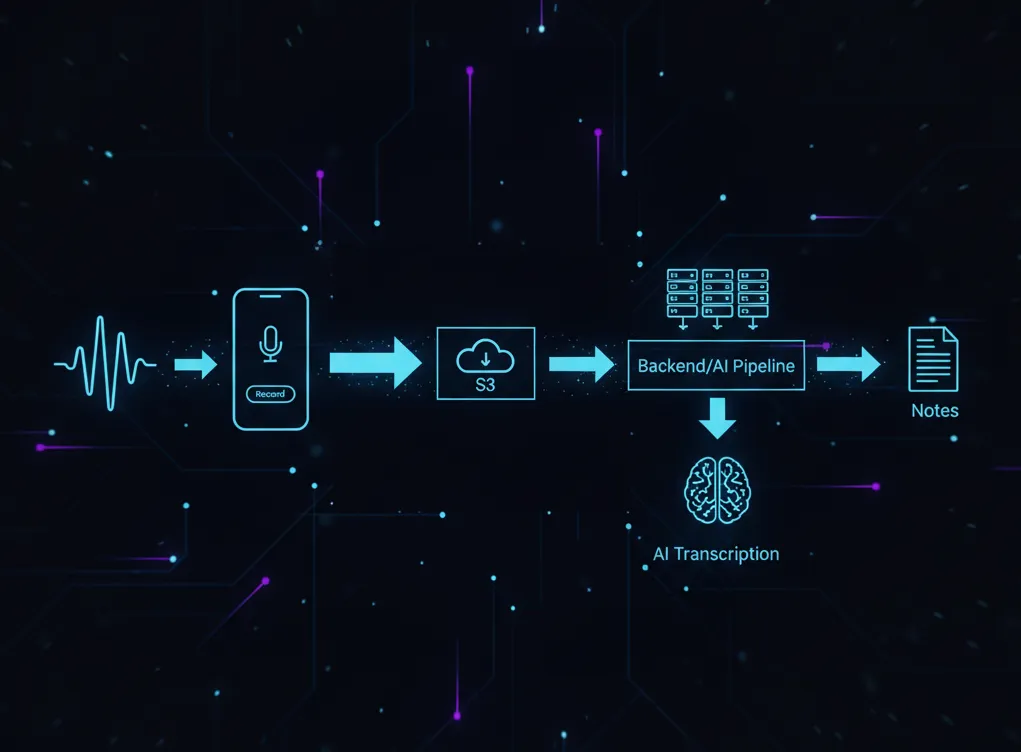
We built a mobile app for clinicians that records therapy sessions and runs them through an AI pipeline to generate structured clinical notes. This was part of a larger clinic operating system we built that handles the entire patient lifecycle - from onboarding to scheduling to billing. Sessions can run over an hour. The app needs to keep recording even when the screen locks or the clinician checks another app.
This post covers how we built it: the recording architecture with expo-audio, contributing to Expo when we hit a missing feature, direct-to-S3 uploads for large files, triggering the AI pipeline, and the markdown editor for reviewing generated notes.
The Requirements
A speech pathology clinic. Clinicians conduct hour-long (sometimes longer) sessions with clients. They wanted to:
- Hit record at the start of a session
- Continue the session naturally - screen might lock, they might glance at another app
- Stop recording at the end
- Have AI-generated notes ready for review within minutes
The audio files are large. An hour of m4a audio can be tens of megabytes. The app needed to handle recording, background audio, large file uploads, and pipeline orchestration - all while feeling simple to the clinician.
Choosing expo-audio
We’re using Expo for the React Native app. For audio recording, expo-audio is the standard choice. It wraps native iOS and Android audio APIs, handles permissions, and manages the recording lifecycle.
import {
  useAudioRecorder,
  RecordingPresets,
  setAudioModeAsync,
} from "expo-audio";

// Configure audio mode
await setAudioModeAsync({
  playsInSilentMode: true,
  allowsRecording: true,
});

// Use the recorder hook
const recorder = useAudioRecorder(RecordingPresets.HIGH_QUALITY);

// Start recording
await recorder.prepareToRecordAsync();
await recorder.record();
The native module handles the heavy lifting - audio capture, encoding to m4a, managing system audio sessions. For short recordings, this works out of the box.
But we needed background recording.
Contributing to Expo
When we started building this feature, expo-audio didn’t support background recording on iOS. Start a recording, lock your phone, and the recording would pause or stop.
For a clinician in the middle of a therapy session, that’s a dealbreaker.
We found the feature gap and decided to help get it into the package rather than fork or find a workaround. Over about a month, we:
- Documented the use case and requirements in a detailed issue
- Collaborated with the Expo team and community on the approach
- Provided beta testing and feedback on the implementation
- Helped validate the feature worked for real-world long-form recording
This is one of the underrated parts of building on open source. When you hit a gap, you can help close it. The feature now exists in expo-audio, and every app with similar requirements benefits.
Background recording requires two things: a config plugin and a runtime flag.
First, enable it in your app config:
{
  "expo": {
    "plugins": [
      [
        "expo-audio",
        {
          "microphonePermission": "Allow $(PRODUCT_NAME) to record audio.",
          "enableBackgroundRecording": true
        }
      ]
    ]
  }
}
This configures the native permissions automatically - FOREGROUND_SERVICE_MICROPHONE on Android, the audio background mode on iOS.
Then enable it at runtime:
await setAudioModeAsync({
  playsInSilentMode: true,
  allowsRecording: true,
  allowsBackgroundRecording: true,
});
On Android, this shows a persistent notification (“Recording audio”) while recording - required for foreground services. On iOS, recording continues seamlessly when backgrounded.
A few lines of configuration. Weeks of collaboration to make them exist.
Handling Large Files
An hour of recorded audio is a large file. You don’t want to:
- Hold it all in memory
- Upload it through your API server
- Block the UI during upload
We use direct-to-S3 uploads with presigned URLs. The flow:
┌─────────────┐      ┌─────────────┐      ┌─────────────┐
│   Mobile    │      │   Backend   │      │     S3      │
│     App     │      │             │      │             │
└──────┬──────┘      └──────┬──────┘      └──────┬──────┘
       │                    │                    │
       │  1. Request URL    │                    │
       │───────────────────>│                    │
       │                    │                    │
       │  2. Presigned URL  │                    │
       │<───────────────────│                    │
       │                    │                    │
       │  3. Upload file directly               │
       │────────────────────────────────────────>│
       │                    │                    │
       │  4. Start pipeline │                    │
       │───────────────────>│                    │
       │                    │  5. Fetch audio    │
       │                    │<───────────────────│
│ │ │- App requests an upload URL from the backend
- Backend generates a presigned S3 URL (valid for a few minutes)
- App uploads directly to S3 - no file data touches our servers
- App calls the backend to start the AI pipeline
- Backend fetches the audio from S3 and processes it
The presigned URL pattern is standard for large file uploads. Your backend never handles the bytes - S3 does. This scales better and keeps your API servers lean.
async function uploadRecording(recordingUri: string) {
  // 1. Get presigned URL from backend
  const { uploadUrl, audioKey } = await api.getUploadUrl();

  // 2. Upload directly to S3
  const file = await fetch(recordingUri);
  const blob = await file.blob();

  await fetchWithRetry(uploadUrl, {
    method: "PUT",
    body: blob,
    headers: {
      "Content-Type": "audio/m4a",
    },
  });

  // 3. Trigger pipeline
  await api.startPipeline({ audioKey });
}
Retry Logic for Uploads
Large uploads on mobile networks fail. Clinics aren’t always in areas with perfect connectivity. We implemented retry logic for the S3 upload:
async function fetchWithRetry(
  url: string,
  options: RequestInit,
  maxRetries = 3,
): Promise<Response> {
  let lastError: Error | null = null;

  for (let attempt = 1; attempt <= maxRetries; attempt++) {
    try {
      const response = await fetch(url, options);

      if (response.ok) {
        return response;
      }

      // Don't retry client errors (4xx)
      if (response.status >= 400 && response.status < 500) {
        throw new Error(`Upload failed: ${response.status}`);
      }

      lastError = new Error(`Upload failed: ${response.status}`);
    } catch (error) {
      lastError = error as Error;
    }

    // Exponential backoff before retry
    if (attempt < maxRetries) {
      await sleep(Math.pow(2, attempt) * 1000);
    }
  }

  throw lastError;
}
For even larger files or worse network conditions, you’d want resumable uploads (multipart upload to S3 with progress tracking). Our current files are manageable with simple retries.
The AI Pipeline
Once the audio is on S3, the backend takes over. The pipeline:
- Fetch audio from S3
- Send to transcription service (optimized for medical/clinical terminology)
- Run LLM transformation to structure the transcript into clinical note format
- Save the draft note to the database
- Send push notification to the clinician
The app doesn’t poll for completion. We use push notifications:
// Notification handler in the app
Notifications.addNotificationReceivedListener((notification) => {
  const { type, appointmentId } = notification.request.content.data;

  if (type === "note_ready") {
    // Navigate to note review screen or show in-app alert
    navigation.navigate("ReviewNote", { appointmentId });
  }
});
The clinician finishes a session, the app uploads in the background, and a few minutes later they get a notification: “Your session notes are ready for review.”
The Markdown Editor
AI-generated notes need human review. The clinician needs to read the note, make adjustments, and publish it to the client’s record.
We needed a markdown editor in React Native. The options:
- Native rich text editors - surprisingly lacking. Most React Native rich text packages are buggy, poorly maintained, or missing features.
- WebView-based editors - mature web editors exist. Wrap one in a WebView.
We went with the WebView approach. A web-based markdown editor loaded in a WebView, communicating with React Native via message passing:
function MarkdownEditor({ initialValue, onChange }) {
  const webViewRef = useRef<WebView>(null);

  const handleMessage = (event: WebViewMessageEvent) => {
    const { type, content } = JSON.parse(event.nativeEvent.data);

    if (type === 'content_changed') {
      onChange(content);
    }
  };

  return (
    <WebView
      ref={webViewRef}
      source={{ uri: 'https://your-app.com/editor' }}
      onMessage={handleMessage}
      injectedJavaScript={`
        window.initialContent = ${JSON.stringify(initialValue)};
        true;
      `}
    />
  );
}
It’s not the most elegant solution, but it works reliably. The web editor handles all the complexity of rich text - formatting, cursor position, selection - and React Native just receives the final markdown.
The Full Flow
From the clinician’s perspective:
- Open appointment in the app
- Tap “Start Session” - recording begins
- Conduct the session normally (screen can lock, they can check other apps)
- Tap “End Session” - recording stops, upload starts
- Continue with their day
- Receive notification: “Notes ready for review”
- Open the note, make any adjustments in the editor
- Publish to the client’s record
The complexity - background audio, large file uploads, AI processing, push notifications - is invisible. They just record and review.
Lessons Learned
Contribute upstream when you can. We needed background recording. Instead of a hacky workaround, we helped get it into expo-audio properly. Took longer upfront, but the feature is now stable and maintained by Expo.
Presigned URLs for large files. Don’t route large uploads through your API. Let the client talk directly to S3. Your servers stay lean, uploads are faster, and you don’t need to handle streaming large request bodies.
Push over polling. Mobile apps shouldn’t poll. The AI pipeline takes a variable amount of time - could be 30 seconds, could be 3 minutes. Push notifications tell the user exactly when their notes are ready.
WebViews are fine for complex editors. Native rich text in React Native is painful. A WebView wrapper around a mature web editor is pragmatic. It works, it’s maintainable, and users don’t notice.
The recording feature has been in production for months. Clinicians use it daily, recording hundreds of sessions. The background recording we helped add to Expo is now available to every app that needs it.
Sometimes the best feature work is the work you contribute to your dependencies.
Building complex React Native apps? We work across healthcare, fintech, and logistics. Get in touch about your project.